Cannot connect to internet after running virus scan and even after uninstalling

Thank you for reporting back Jroffman :slight_smile:

Certainly looks like some progress, especially now that tdx.sys, bfe.dll, etc. are now showing
as legit and present. :slight_smile:

Yes, often some reg files cannot be merged do to certain types of keys. Sometimes, it may be possible
to merge them while in safe mode, but not always. One thing, after seeing your log…it pertains to windows firewall.
I hope the reg files you were able to merge were the BFE and MPSsvc related files at the very least.

BFE is “Base filtering engine” and “Mpssvc” are both windows firewall related. Have you taken a look at your services?
You can access it either by going to “Administrative tools” and clicking “Services”…or you can click start, “Run” and type in services.msc
to bring up the window. Take a look at two services, “Base engine filtering” (BFE) and also scroll down and look at the entry Windows Firewall.
I assume they are not running…but you can try to start them by clicking at the top of the window, the green arrow, or simply right click the entries and choose “Start” from the context menu. Just make sure each service line is highlighted first Base filtering, then Windows Firewall entry as you try to start them one at a time.

The log you posted still shows Localhost is blocked. This I assume is due in part or fully to the fact windows firewall will not run, which may be the reason for the block report, while the BFE and MPSsvc related files are legit, there is still a problem with getting that firewall started. Also while you are checking within
the services.msc window, make sure both “Base Filtering Engine” and Windows Firewall are set to “Automatic” for start up type.

Obviously still something disallowing the firewall service. I am wondering if since “SFC” check fixed the corrupted files, if it would be worth trying to reset the winsock again with the following:

Click Start, then click “All programs”, then click “Accessories” folder…then Right Click “Command Prompt” and choose “Run as Administrator”, answer “Yes” to the prompt to allow this action.

Now within the command prompt window at the prompt, Type the following: “netsh winsock reset” (without the quotes) and then press ENTER.

My thought is after files were replaced, this may be of more assistance, also pay special attention to any errors reported after checking the above in services.msc and after going through the reset of the winsock as instructed. After resetting the winsock after checking the services, please reboot your computer and report back. It appears we are closer than before in getting to the bottom of this problem, but it is fairly clear either some form of infection began the problem, or the uninstall of Mcafee may have wiped out necessary data or a bit of both. At last the tdx.sys, BFE, etc. are showing legit. After reboot, run Farbar again and post report so we can see if anything at all has changed or improved.

Doing my best to figure out how to proceed, so please carefully review the above and report back any reported errors. I suspect if you can get that firewall up and running, it may get you your connectivity back in place…at least I am hoping.
All my best!
Jim

Jim:

Thanks again. I tried to start the services (which are set to automatic) to no avail. The following are the results while logging into the services console with run as admin priveleges.

Base filtering engine gave the following error when trying to start…windows could not start the basic filtering engine service on the local computer. Error 5: access is denied

Of course I could not start the windows firewall because of a 1068 error: the dependency service or group failed to start.

I also tried netsh reset which went successfully but did not seem to help after I rebooted.

Thoughts?

Hi Jroffman :slight_smile:

Thank you for reporting back. This is indeed frustrating, but after doing a bit more research,
it appears the entire situation originates from malware of some sort and often wipes out
or corrupts necessary information, etc., or changing permissions in critical registry keys.

Here is what I found from microsoft technet. We have already done the registry merging with
BFE and Windows firewall. The error you gave regarding the BFE service and firewall, appears
to be the result of certain permissions. Let’s take a look at the following:

Download both the registry files via links given. We will be merging these again as we did before:

http://www.mediafire.com/?317ea53a883288d <this on is for BFE.reg.txt Download to desktop, then right click, rename to just bfe.reg

http://www.mediafire.com/?z6aw8j7997qa7j9 < same instruction for this file which is firewall.reg.txt rename to just firewall.reg

Launch and import them to registry again, or right click file and Merge as we did before.

Restart your PC

Now, click Start then RUN and type regedit and click ok

Navigate to the following key on the left side of the regedit application by expanding each section as before:

HKEY_LOCAL_MACHINE\SYSTEM\CurrentControlSet\services\BFE

Now, once you have come to the BFE key, highlight it and Right click on key- choose permissions

Click on ADD and type “Everyone” (without quotes) and click ok

Now Click on Everyone - Below you have permission for users:

Select full control and click ok

Now click Start again, then RUN and type services.msc and click ok

Proceed to try and start base filtering engine service (BFE) and then windows firewall service as I had you do previously within services.msc

The above has seemed to finally get these services back to operating condition again, even though we have already gone over much of
these steps, we did not deal with the permission factor of the above mentioned registry key. So I thought it best to perform the above
steps one more time, then make the change to the registry permission for the BFE key, then try and start the services as mentioned.

I sure do hope this helps in some way. You have been very patient Jroffman, and thank you for that :slight_smile: Please report back. At this point,
the above details appear to be the solution, if each step is followed carefully. I really am not sure the next step to take after all this, as
I think we have exhausted our options short of re-installing Windows which I hope you do not need to do, but if this does not work, it may
be necessary. We gave it our best shot either way my friend. Let’s hope this attempt will solve it.

Have a great day!

All my best!
Jim

Jim:

Some progress but still no luck in the end. I was able to copy those registry keys, merge them and change the permissions that you described, and then actually started both services. However, I still can’t connect even after rebooting.

I ran Farbar log just in case that helps:

Farbar Service Scanner Version: 25-05-2012
Ran by Kitchen (administrator) on 31-05-2012 at 20:30:48
Running from “C:\Users\Kitchen\Desktop”
Microsoft Windows 7 Home Premium Service Pack 1 (X86)
Boot Mode: Normal


Internet Services:

Connection Status:

Localhost is blocked.
LAN connected.
Attempt to access Google IP returned error: Other errors
Attempt to access Yahoo IP returned error: Other errors

Windows Firewall:

Firewall Disabled Policy:

[HKEY_LOCAL_MACHINE\SYSTEM\CurrentControlSet\Services\SharedAccess\Parameters\FirewallPolicy\DomainProfile]
“EnableFirewall”=DWORD:0
[HKEY_LOCAL_MACHINE\SYSTEM\CurrentControlSet\Services\SharedAccess\Parameters\FirewallPolicy\StandardProfile]
“EnableFirewall”=DWORD:0
[HKEY_LOCAL_MACHINE\SYSTEM\CurrentControlSet\Services\SharedAccess\Parameters\FirewallPolicy\PublicProfile]
“EnableFirewall”=DWORD:0

System Restore:

System Restore Disabled Policy:

Action Center:

Windows Update:

Windows Autoupdate Disabled Policy:

File Check:

C:\Windows\system32\nsisvc.dll => MD5 is legit
C:\Windows\system32\Drivers\nsiproxy.sys => MD5 is legit
C:\Windows\system32\dhcpcore.dll => MD5 is legit
C:\Windows\system32\Drivers\afd.sys => MD5 is legit
C:\Windows\system32\Drivers\tdx.sys => MD5 is legit
C:\Windows\system32\Drivers\tcpip.sys => MD5 is legit
C:\Windows\system32\dnsrslvr.dll => MD5 is legit
C:\Windows\system32\mpssvc.dll => MD5 is legit
C:\Windows\system32\bfe.dll => MD5 is legit
C:\Windows\system32\Drivers\mpsdrv.sys => MD5 is legit
C:\Windows\system32\SDRSVC.dll => MD5 is legit
C:\Windows\system32\vssvc.exe => MD5 is legit
C:\Windows\system32\wscsvc.dll => MD5 is legit
C:\Windows\system32\wbem\WMIsvc.dll => MD5 is legit
C:\Windows\system32\wuaueng.dll => MD5 is legit
C:\Windows\system32\qmgr.dll => MD5 is legit
C:\Windows\system32\es.dll => MD5 is legit
C:\Windows\system32\cryptsvc.dll => MD5 is legit
C:\Windows\system32\svchost.exe => MD5 is legit
C:\Windows\system32\rpcss.dll => MD5 is legit

**** End of log ****

Thanks again,

Josh

I am also getting a message saying that my machine now has multiple ip addresses…any thoughts?

Hi Josh :slight_smile:

Thank you for updating how things are going. In regards to where you are at now, it was good to hear
you got the BFE and firewall running, but it appears localhost is still blocked.

In regards to multiple IP addresses, let’s try a few more commands using the command prompt as we
have done before.

Click Start, All programs, and then click Accessories. Find Command Prompt and right click and choose
“Run as Administrator”. When command prompt window opens, we will invoke the command “ipconfig”

Below are a few ipconfig commands that may assist in the multiple addresses issue:

Ipconfig

The ipconfig command is used to view or modify a computer’s IP addresses. For example, if you wanted to view a Windows 7 system’s full IP configuration, you could use the following command within the command prompt:

ipconfig /all

Assuming that the system has acquired its IP address from a DHCP server, you can use the ipconfig command to release and then renew the IP address. Doing so involves using the following commands:

ipconfig /release

ipconfig /renew

This option re-establishes TCP/IP connections on all network adapters. As with the release option, ipconfig /renew takes an optional connection name specifier.

Both /renew and /release options only work on clients configured for dynamic (DHCP) addressing.

Another handy thing you can do with ipconfig is flush the DNS resolver cache. This can be helpful when a system is resolving DNS addresses incorrectly. You can flush or erase the DNS cache by using this command:

ipconfig /flushdns

ipconfig /registerdns
Similar to the above options, this option updates DNS settings on the Windows computer. Instead of merely accessing the local DNS cache, however, this option initiates communication with both the DNS server (and the DHCP server) to re-register with them.

This option is useful in troubleshooting problems involving connection with the Internet service provider, such as failure to obtain a dynamic IP address or failure to connect to the ISP DNS server.

Like the /release and /renew options, /registerdns optionally takes the name(s) of specific adapters to update. If no name parameter is specified, /registerdns updates all adapters.

[u]I would try the following in your case to start:

Type “ipconfig /release” (without the quotes) then hit Enter key

Type “ipconfig /renew” (without the quotes) then hit Enter key
[/u]
In regards to your localhost being blocked in your log report, that may have to do with
your “hosts” file. You can find this file at the following path using windows explorer file
manager: C:\Windows\System32\drivers\etc (assuming C:\ is your OS drive letter)

If you right click on the “hosts” file, choose open and then choose “notepad” to view the contents.
Typically, a generic hosts file generated in windows 7 looks like this:

Copyright (c) 1993-2009 Microsoft Corp.

This is a sample HOSTS file used by Microsoft TCP/IP for Windows.

This file contains the mappings of IP addresses to host names. Each

entry should be kept on an individual line. The IP address should

be placed in the first column followed by the corresponding host name.

The IP address and the host name should be separated by at least one

space.

Additionally, comments (such as these) may be inserted on individual

lines or following the machine name denoted by a ‘#’ symbol.

For example:

102.54.94.97 rhino.acme.com # source server

38.25.63.10 x.acme.com # x client host

localhost name resolution is handled within DNS itself.

127.0.0.1 localhost

::1 localhost

You can check your hosts file has not been edited by malware or other means by taking a look at the actual
contents described above. Yours should look like the above example if it was generated by windows.

Maybe the ipconfig commands and their operation will be helpful to you. We’re close, but still no connection
which I am scratching my head over at this point. Try the ipconfig commands and then verify your “hosts” file as
mentioned. I do hope you can make some further progress.

If anyone else can chime in, or has any other possible solutions for Josh, I am sure he would be grateful. I know I would :slight_smile:
Let us know how it goes Josh. Have a nice weekend.

All my best!
Jim

Fix It available for Windows 7, Vista, XP for hosts file here: http://support.microsoft.com/kb/972034

Should reset hosts file to default settings.

Thanks for the help gus…still no luck as far as getting connectivity.

I have run the fixit as well as the various ipconfig commands and confirmed the hosts file is okay. I am not getting a multiple IP address error but still have no connection to the internet.

I’m not sure that it helps but here is the current Farbar reports…any other thoughts are appreciated…

Farbar Service Scanner Version: 25-05-2012
Ran by Kitchen (administrator) on 04-06-2012 at 21:34:47
Running from “C:\Users\Kitchen\Desktop”
Microsoft Windows 7 Home Premium Service Pack 1 (X86)
Boot Mode: Normal


Internet Services:

Connection Status:

Localhost is blocked.
LAN connected.
Attempt to access Google IP returned error: Other errors
Attempt to access Yahoo IP returned error: Other errors

Windows Firewall:

Firewall Disabled Policy:

[HKEY_LOCAL_MACHINE\SYSTEM\CurrentControlSet\Services\SharedAccess\Parameters\FirewallPolicy\DomainProfile]
“EnableFirewall”=DWORD:0
[HKEY_LOCAL_MACHINE\SYSTEM\CurrentControlSet\Services\SharedAccess\Parameters\FirewallPolicy\StandardProfile]
“EnableFirewall”=DWORD:0
[HKEY_LOCAL_MACHINE\SYSTEM\CurrentControlSet\Services\SharedAccess\Parameters\FirewallPolicy\PublicProfile]
“EnableFirewall”=DWORD:0

System Restore:

System Restore Disabled Policy:

Action Center:

wscsvc Service is not running. Checking service configuration:
The start type of wscsvc service is OK.
The ImagePath of wscsvc service is OK.
The ServiceDll of wscsvc service is OK.

Windows Update:

wuauserv Service is not running. Checking service configuration:
The start type of wuauserv service is OK.
The ImagePath of wuauserv service is OK.
The ServiceDll of wuauserv: “C:\Windows\system32\wuaueng.dll”.

Windows Autoupdate Disabled Policy:

File Check:

C:\Windows\system32\nsisvc.dll => MD5 is legit
C:\Windows\system32\Drivers\nsiproxy.sys => MD5 is legit
C:\Windows\system32\dhcpcore.dll => MD5 is legit
C:\Windows\system32\Drivers\afd.sys => MD5 is legit
C:\Windows\system32\Drivers\tdx.sys => MD5 is legit
C:\Windows\system32\Drivers\tcpip.sys => MD5 is legit
C:\Windows\system32\dnsrslvr.dll => MD5 is legit
C:\Windows\system32\mpssvc.dll => MD5 is legit
C:\Windows\system32\bfe.dll => MD5 is legit
C:\Windows\system32\Drivers\mpsdrv.sys => MD5 is legit
C:\Windows\system32\SDRSVC.dll => MD5 is legit
C:\Windows\system32\vssvc.exe => MD5 is legit
C:\Windows\system32\wscsvc.dll => MD5 is legit
C:\Windows\system32\wbem\WMIsvc.dll => MD5 is legit
C:\Windows\system32\wuaueng.dll => MD5 is legit
C:\Windows\system32\qmgr.dll => MD5 is legit
C:\Windows\system32\es.dll => MD5 is legit
C:\Windows\system32\cryptsvc.dll => MD5 is legit
C:\Windows\system32\svchost.exe => MD5 is legit
C:\Windows\system32\rpcss.dll => MD5 is legit

**** End of log ****

Hi,

Maybe I have overlooked this but are you able to connect at all with this system? Are you able to connect with a hard wire? Are other computers able to access your internet meaning the only system effected is the one we are working on?

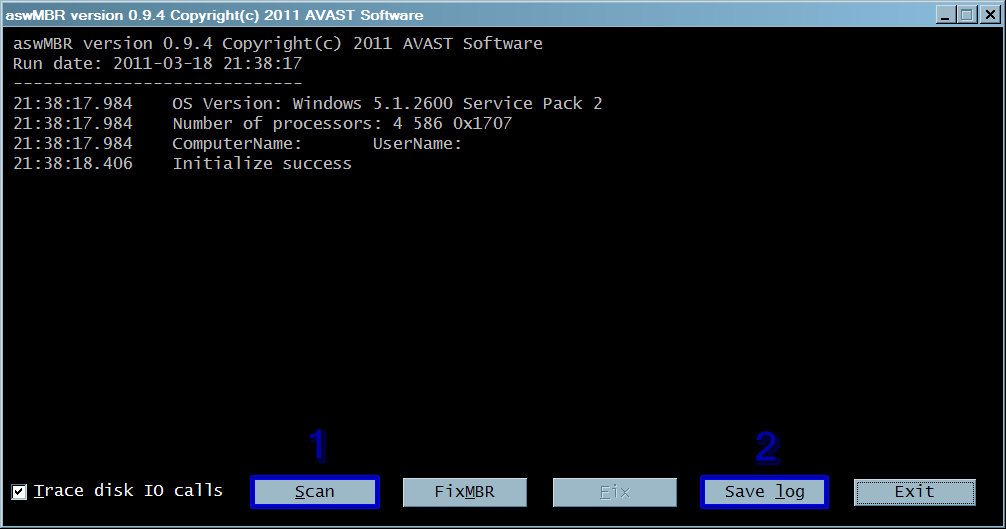
Please download aswMBR to your desktop.

[*]Right click and Run as Administrator the aswMBR icon to run it.
[*]Click the Scan button to start scan.
[*]When it finishes, press the save log button, save the logfile to your desktop and post its contents in your next reply.


http://i1190.photobucket.com/albums/z454/Blottedisk/aswMBRscan-1.png

Click the image to enlarge it

OTL

[*]Download OTL to your desktop.
[*]Right-click and Run as Administrator on the icon to run it. Make sure all other windows are closed and to let it run uninterrupted.
[*]Select All Users
[*]When the window appears, underneath Output at the top change it to Minimal Output.
[*]Check the boxes beside LOP Check and Purity Check.
[*]Under the Custom Scan box paste this in

netsvcs
%systemroot%*. /rp /s
%SYSTEMDRIVE%*.exe
/md5start
consrv.dll
explorer.exe
winlogon.exe
Userinit.exe
svchost.exe
/md5stop
CREATERESTOREPOINT

[*]Click the Quick Scan button. Do not change any settings unless otherwise told to do so. The scan wont take long.

[*]When the scan completes, it will open two notepad windows. OTL.Txt and Extras.Txt.
Note:These logs can be located in the OTL. folder on you C:\ drive if they fail to open automatically.
[*]Please copy (Edit->Select All, Edit->Copy) the contents of these files, one at a time, and post it with your next reply. You may need two posts to fit them both in.


In your next reply please attach the logs made by both aswMBR and OTL. Also be sure to answer the questions I asked about. :slight_smile:

I can and will try the steps you suggested (tonight).

To answer your question now…I have both wireless and wired capabilities on that machine. I used to connect wireless but then added a hard wire connection about 6 months ago (which has worked great until this happened). All other machines in my house (3 of them) are working great as far as connectivity goes.

Ok…I will look over them when you get them attached.

hello,
I have the exact same problem here, only with a slight difference: lspfix did not find any problem.
I’ve done everything you suggested but just like the OP, nothing works.
additionally I overwrote winsock.dll and winsock32.dll with the files in dllcache folder but that didn’t work either.
I will definitely follow this thread for a possible solution

GREAT NEWS

I just fixed the problem using winsock fix
It is available for download here: http://files.snapfiles.com/localdl936/WinsockxpFix.exe
it repairs some corrupted or removed registry entries
just click on “fix”, system will need to restart and BAM the problem is gone.

I surfed the net 24 hrs for this.

p.s.
i know the file extension in exe and seems unsafe, I too risked of getting infected but I ran it anyway and it was totally worth the risk.

What operating system were you using?

I was successful at running aswMBR…

aswMBR version 0.9.9.1665 Copyright(c) 2011 AVAST Software
Run date: 2012-06-06 23:13:53

23:13:53.660 OS Version: Windows 6.1.7601 Service Pack 1
23:13:53.660 Number of processors: 2 586 0xF0D
23:13:53.660 ComputerName: KITCHEN-PC UserName: Kitchen
23:14:14.626 Initialize success
23:14:25.186 Disk 0 (boot) \Device\Harddisk0\DR0 → \Device\Ide\IdeDeviceP0T0L0-0
23:14:25.186 Disk 0 Vendor: WDC_WD800JD-75MSA3 10.01E04 Size: 76293MB BusType: 3
23:14:25.201 Disk 0 MBR read successfully
23:14:25.201 Disk 0 MBR scan
23:14:25.217 Disk 0 Windows 7 default MBR code
23:14:25.217 Disk 0 Partition 1 00 DE Dell Utility Dell 8.0 47 MB offset 63
23:14:25.232 Disk 0 Partition 2 00 07 HPFS/NTFS NTFS 10240 MB offset 98304
23:14:25.232 Disk 0 Partition 3 80 (A) 07 HPFS/NTFS NTFS 66004 MB offset 21069824
23:14:25.248 Disk 0 scanning sectors +156246016
23:14:25.310 Disk 0 scanning C:\Windows\system32\drivers
23:14:32.814 Service scanning
23:14:59.771 Modules scanning
23:15:11.986 Disk 0 trace - called modules:
23:15:12.017 ntkrnlpa.exe CLASSPNP.SYS disk.sys ACPI.sys halmacpi.dll ataport.SYS pciide.sys PCIIDEX.SYS atapi.sys
23:15:12.032 1 nt!IofCallDriver → \Device\Harddisk0\DR0[0x865b5548]
23:15:12.032 3 CLASSPNP.SYS[8a78559e] → nt!IofCallDriver → [0x860f4918]
23:15:12.048 5 ACPI.sys[83ebc3d4] → nt!IofCallDriver → \Device\Ide\IdeDeviceP0T0L0-0[0x8582c908]
23:15:12.048 Scan finished successfully
23:20:10.336 Disk 0 MBR has been saved successfully to “F:\MBR.dat”
23:20:10.352 The log file has been saved successfully to “F:\aswMBR_log1.txt”

When trying to run OTL…it looks like it runs fine beyond the point where it creates a restore point and then it stops responding with the last status message at the bottom of the UI reading…Manual File Scan - Getting Folder Structure.

Please advise.

I got the OTL log file but it is huge and would probably require me to break it into 5 to 10 parts…is there a section of interest?

Just attach the log if you are able to. If you need to break the attachment into two or more that is fine. :slight_smile: Be sure to get all of it though.

Have you tried it?

Hi Josh :slight_smile:

Perhaps the following will also be of assistance for you…at least I hope so.

http://www.tweaking.com/content/page/repair_windows_firewall.html

Also this: http://www.tweaking.com/content/page/repair_winsock_dns_cache.html

They have utilities that are fairly effective and thought I would pass the info to you.

All my best!
Jim